
Table of Contents
- Why Integrate Philips Hue with KNX
- Hardware Requirements for Integrating Philips Hue with KNX
- ISE Smart Connect KNX Hue Setup Process
- Smart Home Lighting Integration Best Practices
- KNX Lighting Control Commissioning and Configuration
- Common Integration Challenges and Solutions
- When to Call a Professional KNX Installer
- Frequently Asked Questions
Last Updated: September 27, 2026
Why Integrate Philips Hue with KNX
Integrating Philips Hue with KNX creates a unified smart lighting system that responds to your entire home’s automation logic. Rather than controlling Hue lights separately through an app, you link them into your KNX infrastructure so they work alongside climate control, security, and other connected systems.
The real value emerges when your lighting adapts automatically. Motion sensors trigger scenes. Time-based rules dim lights at sunset. Security events activate emergency lighting. A single control interface manages everything instead of juggling multiple apps.
Homeowners often underestimate how much simpler life becomes when lighting, heating, and access control speak the same language. The integration removes friction from daily routines and creates genuinely responsive environments.
Integrating Philips Hue with KNX also future-proofs your investment. KNX is an open standard used globally for decades. Hue products continue to evolve. Binding them through KNX ensures both can be upgraded independently without breaking your system.
Hardware Requirements for Integrating Philips Hue with KNX
You’ll need specific equipment to bridge Hue and KNX. Start with a Philips Hue Bridge, which is the central hub that manages all your Hue lights and controls their colour, brightness, and scheduling.
Next, you need a KNX gateway (also called a KNX interface or KNX router). This device connects to your KNX bus and translates commands between KNX and other protocols. Popular options include Gledopto gateways and specialist KNX-to-Zigbee converters.
For the integration itself, you’ll use ISE Smart Connect KNX Hue software or a similar middleware. This layer sits between KNX and your Hue Bridge, allowing KNX logic to control Hue devices as if they were native KNX actuators. Establishing this bridge provides a robust foundation for syncing smart brands across your entire installation to ensure consistent control throughout the property.
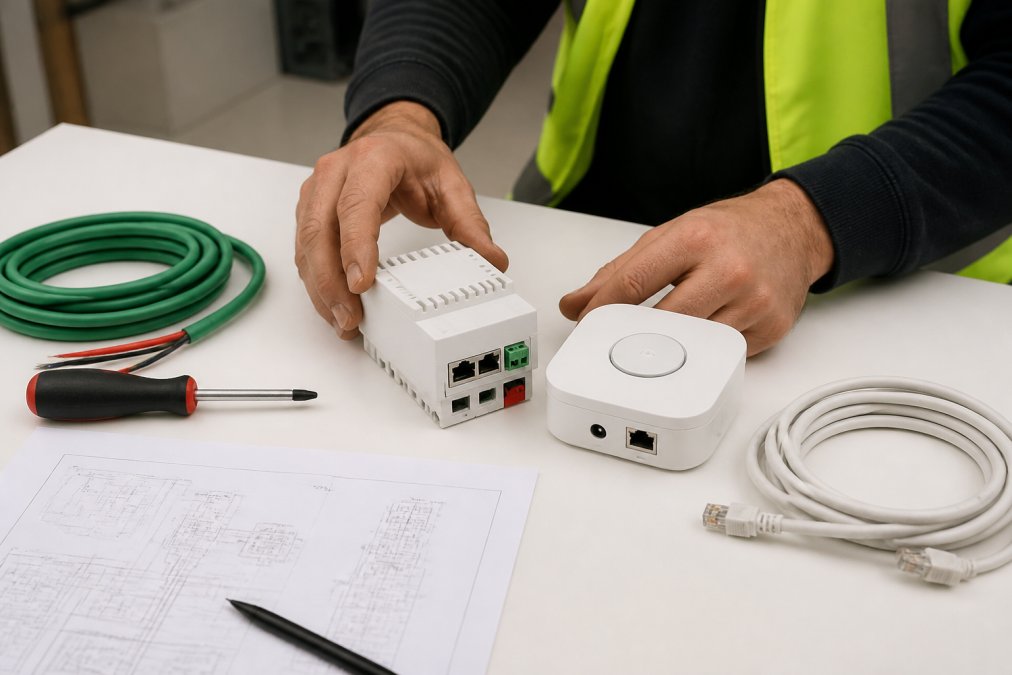
Your network infrastructure matters too. Both devices need stable, reliable connectivity, either wired Ethernet or strong WiFi. Poor network performance creates lag and unreliable automation.
You’ll also need:
- Twisted-pair KNX cabling (typically TP or KNX TP)
- A KNX power supply unit (PSU)
- Network switch or router with sufficient bandwidth
- Spare KNX addresses for the Hue integration module
Most residential installations use a single KNX PSU and one gateway. Larger properties may need multiple gateways for redundancy.
ISE Smart Connect KNX Hue Setup Process
The setup process involves four distinct stages: physical installation, network configuration, KNX commissioning, and testing.
Stage 1: Physical Installation
Mount your KNX gateway and Philips Hue Bridge in a central, accessible location, typically near your router or network cabinet. Ensure they’re on the same network segment for reliable communication.
Connect the KNX gateway to your KNX bus using standard twisted-pair cabling. Terminate the bus correctly at both ends to prevent signal reflections.
Power both devices and verify they boot successfully. Check LED indicators on the gateway; most show green when operating normally.
Stage 2: Network Configuration
Assign static IP addresses to both the KNX gateway and Hue Bridge. This prevents connection drops if your router reassigns addresses.
Configure the gateway’s network settings through its web interface or management software. Set the gateway to communicate with your Hue Bridge over the local network.
Test connectivity between the two devices by pinging each from the other. If either device is unreachable, check firewall rules and network segmentation.
Stage 3: ISE Smart Connect KNX Hue Commissioning
Open ISE Smart Connect (or your chosen middleware) and add the Hue Bridge as a new device. The software will discover available Hue lights and display them in a list.
Create KNX group addresses for each light or light group. For example:
- 1/1/1 = Living room main lights
- 1/1/2 = Living room accent lights
- 1/2/1 = Bedroom lights
Map each Hue light to its corresponding KNX group address. This tells the system which KNX commands control which physical lights.
Stage 4: Testing and Validation
Send test commands from your KNX interface. Toggle lights on and off. Adjust brightness. Confirm that KNX commands reach the Hue lights without delay.
Check both directions: KNX → Hue and Hue → KNX. If you adjust a Hue light manually through the app, does the KNX system reflect that change?
Document all group addresses and light assignments. This record becomes invaluable if you need to troubleshoot later.
Smart Home Lighting Integration Best Practices
Successful smart home lighting integration demands thoughtful design before installation begins.
Plan Your Zones First
Divide your home into logical zones: living areas, bedrooms, kitchen, hallways. Assign each zone its own KNX group addresses rather than controlling individual lights. This simplifies logic and reduces the number of addresses you’ll need.
Use Scenes for Common States
Create predefined scenes in your KNX programming. “Evening” dims lights to 40% and shifts colour temperature toward warm. “Movie” darkens the room completely. “Departure” switches everything off.
Scenes reduce the number of individual commands your automation needs to send. They also ensure consistent behaviour across your home.
Layer Your Control Logic
Avoid overlapping automation rules. If motion sensors trigger lights in the hallway, don’t also have a time-based rule switching them on at the same moment. The system becomes unpredictable.
Instead, stack rules with clear priority:
- Manual control always wins
- Presence-based automation (motion, door sensors)
- Time-based schedules (sunrise, sunset)
- Manual overrides (voice commands, physical switches)
Integrate Feedback Sensors
Use occupancy sensors to detect when rooms are empty. Link them to your Hue integration so lights turn off automatically after a set period of inactivity.
Daylight sensors allow your system to adjust brightness based on natural light levels. This saves energy and maintains consistent illumination throughout the day.
Test Edge Cases
Verify behaviour when:
- Network connectivity drops (does the system fall back gracefully?)
- A Hue light is removed or added (does the system handle the change?)
- Multiple automation rules trigger simultaneously (which takes priority?)
- Manual overrides conflict with scheduled automation (what happens?)
KNX Lighting Control Commissioning and Configuration
Commissioning transforms your hardware setup into a functioning automation system.
Step 1: Create Your KNX Project
Use ETS (Engineering Tool Software) or an equivalent KNX design tool. This software manages your entire KNX network structure, group addresses, and device assignments.
Create a new project file and define your topology. Specify how many KNX lines you have, which devices sit on each line, and which addresses they control.
Step 2: Define Group Addresses
Group addresses are the “language” your KNX system uses. They tell devices which commands apply to them.
Use a hierarchical structure:
- Main group (0-31): function type (lighting, climate, security)
- Middle group (0-7): zone or area
- Sub-group (0-255): specific device or scene
Example: 1/2/10 means Main Group 1 (lighting) → Middle Group 2 (bedroom) → Sub-group 10 (main lights).
Step 3: Link Devices to Group Addresses
Assign each physical device (Hue light, motion sensor, switch) to the appropriate group addresses. The device will listen for commands sent to those addresses and act on them.
A single device can belong to multiple group addresses. A bedroom light might respond to both “all lights off” and “bedroom lights on” commands.
Step 4: Program Automation Logic
Define the rules that make your system intelligent:
- If motion detected AND time is between sunset and midnight → turn lights on at 60% brightness
- If all occupants have left (confirmed by multiple sensors) → turn all lights off after 5 minutes
- If security alarm triggers → activate emergency lighting at full brightness
Test each rule individually before enabling them all together.
Step 5: Configure Feedback and Status
Tell your KNX system which devices should report their status back to the network. When a Hue light is manually dimmed through the Hue app, the system should know about it.
This feedback prevents automation from fighting manual adjustments and keeps your interface accurate.
Common Integration Challenges and Solutions
Integrating Philips Hue with KNX introduces complexity. Anticipate these common issues.
Problem: Lights Respond Slowly to KNX Commands
Cause: Network congestion or poor gateway placement.
Fix: Check your network bandwidth. Separate KNX traffic from general internet traffic using VLANs if possible.
Problem: Hue Lights Drop Off the Network
Cause: WiFi interference or Hue Bridge connectivity issues.
Cause: IP address mismatch or firewall blocking communication.
Problem: Automation Rules Trigger Unpredictably
Cause: Overlapping logic or conflicting group addresses.
Problem: Manual Hue App Changes Don’t Sync to KNX
Cause: One-way integration instead of bidirectional feedback.
When to Call a Professional KNX Installer
Some aspects of KNX integration demand professional expertise. Know when to bring in specialists.
Call a professional if:
- Your home has a large number of lighting group addresses (complexity exceeds DIY scope)
- You need redundant gateways for reliability (requires network design expertise)
- You want to integrate security systems alongside lighting (liability and safety concerns)
- Your existing KNX installation is more than 10 years old (legacy compatibility issues)
- You’re working in a commercial property (regulatory compliance required)
Frequently Asked Questions
Can Philips Hue be controlled directly by a KNX wall switch?
Not directly without an intermediary gateway. Philips Hue uses its own wireless protocol (Zigbee), whilst KNX operates on a separate standard. A KNX gateway or integration device bridges the two systems, allowing KNX wall switches to send commands that control Hue lights. This requires proper configuration during commissioning to map KNX switch inputs to specific Hue light groups or scenes.
What is the main advantage of integrating Philips Hue with KNX systems?
Integration allows you to control all your lighting, both Hue and traditional KNX fixtures, from a single interface and automation logic. This creates a unified smart home lighting experience with consistent scheduling, occupancy-based dimming, and scene management. You avoid managing separate apps and gain the reliability and professional-grade features of KNX control alongside Hue’s colour and brightness flexibility.
Do I need a dedicated gateway for integrating Philips Hue with KNX?
Yes, a dedicated gateway or KNX interface is essential. The Philips Hue Bridge alone cannot speak KNX; you need a device that translates between the two protocols. Options include KNX gateways with built-in Hue support or third-party integration devices. A professional installer will select the right gateway for your system size and ensure it’s properly commissioned to handle all communication reliably.
What happens to my Philips Hue lights if the KNX system fails?
If the KNX gateway or integration device fails, your Hue lights typically revert to being controlled via the Philips Hue app or Hue remote only, they don’t stop working entirely. However, you lose the unified KNX control and any automation tied to KNX logic. This is why professional commissioning is crucial for ensuring system resilience and ongoing support to catch issues before they disrupt your system.