
Table of Contents
- Before You Start: Diagnose the Problem
- Smart Home Device Not Responding: Step-by-Step Fixes
- Smart Home Wi-Fi Troubleshooting: Reconnect and Stabilise
- Smart Home Automation Not Working: Restore Your Routines
- Smart Home System Maintenance Checklist: Prevent Future Issues
- When to Call a Professional
- Conclusion
- Frequently Asked Questions
Last Updated: October 7, 2026
Before You Start: Diagnose the Problem
When your smart home system stops working, the first instinct is often to panic. But most problems are simple to fix once you know where to look. The key is working through the issue methodically rather than trying random fixes.
A smart home system troubleshooting guide helps you identify whether the fault lies with a single device, your network, or the hub itself. This distinction matters because each requires a different approach.
Is it the device, the network, or the hub?
Start by asking yourself three questions:
Is just one device not responding? If your Philips Hue lights work but your smart thermostat doesn’t, the problem is isolated to that device or its connection to the hub.
Are multiple devices failing? When several devices stop working at once, the issue usually sits with your Wi-Fi network or the hub itself.
Can you access the app at all? If your smart home app won’t load or connect, your network or hub is likely the culprit.
Write down what’s actually broken. This narrows your search considerably.
Quick checks to run first
Before diving into technical fixes, run these simple checks:
- Check the app notification centre for error messages
- Restart your smartphone or tablet
- Verify your internet connection is working (test it on another device)
- Check whether your hub is powered on and showing a normal status light
- Look for any recent power cuts or router restarts
These take two minutes and solve many problems without further steps.
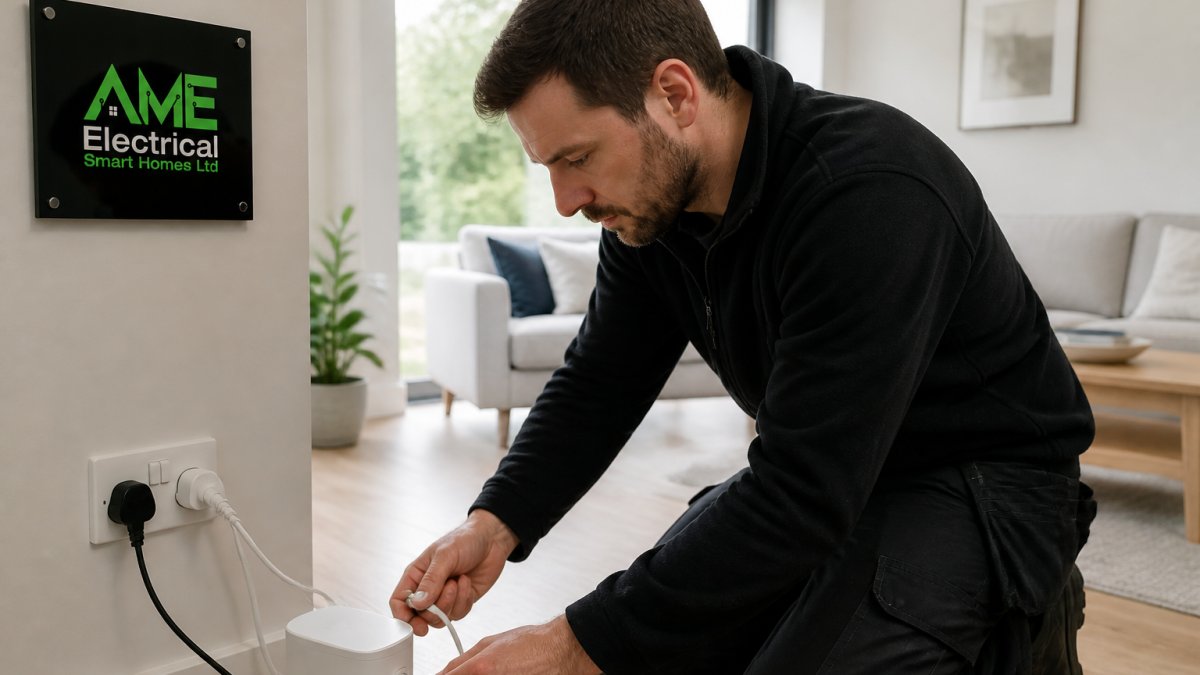
Smart Home Device Not Responding: Step-by-Step Fixes
When a single device stops responding, the issue is usually power, connection, or a software glitch. Work through these fixes in order.
Check power and physical connections
A device that won’t respond is often simply unpowered. This sounds obvious, but it’s the most common culprit.
For mains-powered devices: Check that the plug is firmly seated in the socket. Look for a power indicator light on the device itself.
For battery-powered devices: Replace the batteries with fresh ones.
For wired devices: Inspect the cable for damage. A pinched or damaged wire can cut power without being obvious.
If the device now responds, you’ve found your answer. If not, move to the next step.
Restart the device and hub
A restart often clears temporary glitches that prevent communication.
To restart a device:
- Unplug it (or remove batteries) for 30 seconds
- Plug it back in (or reinsert batteries)
- Wait for it to fully boot, this can take 2-3 minutes
- Check the app to see if it responds
To restart your hub:
- Unplug the hub for 30 seconds
- Plug it back in
- Wait 3-5 minutes for it to fully restart
- Check that all devices reconnect
A hub restart is more disruptive because all your devices will temporarily go offline. Do this only if a single device restart doesn’t work.
Remove and re-add the device
If a device still won’t respond after a restart, it may have lost its connection to the hub. Removing and re-adding it forces a fresh connection.
Steps to remove and re-add:
- Open your smart home app
- Find the unresponsive device in your device list
- Select “Remove” or “Delete” (exact wording varies by app)
- Confirm the removal
- Put the device into pairing mode (check the manual for how, often it’s a button press or a specific sequence)
- In the app, select “Add device” or “Pair new device”
- Follow the prompts to reconnect the device to your hub
- Once connected, test that it responds
This process takes 5-10 minutes but resolves most connection problems.
Smart Home Wi-Fi Troubleshooting: Reconnect and Stabilise
If multiple devices are unresponsive or dropping offline frequently, your Wi-Fi network is likely the issue. Smart home devices need a stable connection to function reliably.
Check your router and signal strength
Your smart home hub and devices must maintain a strong Wi-Fi signal to communicate.
Check router placement: Your router should be in a central location, elevated, and away from obstacles.
Test signal strength: Stand near your hub and check the Wi-Fi signal indicator on your phone.
Check for interference: Microwave ovens, cordless phones, and baby monitors operate on the same 2.4 GHz frequency as most smart home devices.
Verify the hub is connected: Log into your router’s settings and confirm your hub is listed as a connected device.
Reduce interference and optimise placement
Smart home devices communicate on the 2.4 GHz Wi-Fi band, which is crowded in many homes. Reducing interference improves stability.
Practical steps to reduce interference:
- Position your router away from the kitchen (microwave interference is common)
- Keep the router away from thick walls and metal filing cabinets
- Move cordless phone bases away from the router
- If you have a 5 GHz Wi-Fi network, ensure your hub connects to the 2.4 GHz band (most smart home devices don’t support 5 GHz)
- Consider adding a Wi-Fi mesh system if your home is large, this extends coverage and reduces dead zones
Placement matters more than router power. A well-placed router with moderate power beats a powerful router hidden in a cupboard.
Update router firmware and reset network settings
Outdated router firmware can cause connection problems. Updating it often resolves stability issues.
To update your router:
- Log into your router’s admin panel (usually at 192.168.1.1 or 192.168.0.1)
- Look for a “Firmware” or “System” settings section
- Check for available updates
- If an update is available, follow the prompts to install it
- The router will restart, wait 5 minutes before reconnecting devices
If problems persist, reset your network:
- Unplug your router for 30 seconds
- Plug it back in
- Wait for it to fully restart (2-3 minutes)
- Reconnect your hub and devices
This clears any corrupted connection data and forces devices to re-establish fresh connections.
Smart Home Automation Not Working: Restore Your Routines
Automations (like “turn lights on at sunset”) stop working when triggers fail or permissions are missing. These are usually software issues, not hardware failures.
Verify automation rules and triggers
An automation won’t run if its trigger condition is wrong or if the connected devices have changed.
Check each automation:
- Open your smart home app and navigate to automations
- Review each rule that isn’t working
- Confirm the trigger (time of day, sensor reading, or manual action) is set correctly
- Verify that the devices listed in the automation still exist and are responding
- Delete and recreate any automation that’s been broken for more than a week
Automations sometimes break when a device is removed and re-added with a different name or ID.
Check device permissions and app settings
Some automations require specific permissions to run. Missing permissions silently prevent automations from executing.
Verify permissions:
- Open your smart home app settings
- Check that the app has permission to access location (if your automation uses location-based triggers)
- Verify that the app has permission to send notifications
- Check that your hub has the latest app version installed
- Restart the app completely (close it and reopen it)
For location-based automations specifically:
- Confirm location services are enabled on your phone
- Check that the app permission for location is set to “Always” or “While Using”
- Verify you’ve defined your home location correctly in the app
Rebuild automations from scratch if needed
If an automation still won’t work after checking triggers and permissions, the fastest fix is often to delete it and create it again.
To rebuild an automation:
- Open the app and note down exactly what the automation was supposed to do
- Delete the broken automation
- Create a new automation with the same settings
- Test it immediately (manually trigger it if possible)
- Verify it runs as expected
This takes 5 minutes and resolves most stubborn automation issues.
Smart Home System Maintenance Checklist: Prevent Future Issues
Regular maintenance prevents most problems before they occur. These tasks take minimal time but keep your system running smoothly.
Monthly maintenance tasks
Perform these checks once a month:
- Test a few automations: Pick two or three automations and verify they run as expected
- Check device status: Open your app and confirm all devices show as “online” or “responding”
- Review notifications: Check whether any devices have sent error messages to your app
- Restart your hub: Unplug it for 30 seconds and plug it back in (this clears temporary glitches)
Quarterly and annual checks
Every three months, perform these broader checks:
- Update firmware: Check whether your hub, router, or connected devices have firmware updates available and install them
- Review automations: Look at automations you haven’t used in months and delete any you no longer need
- Test backup systems: If your hub has a battery backup, verify it still holds charge
- Check Wi-Fi coverage: Walk around your home and confirm all devices still have a strong signal
Once a year, perform a deeper review:
- Audit device list: Remove any devices you no longer own or use
- Update passwords: Change your smart home app password and router admin password
- Review permissions: Check that your app still has the permissions it needs
- Plan upgrades: Identify any devices that are failing frequently and plan replacements
When to Call a Professional
Some problems require professional help. If you’ve worked through this smart home system troubleshooting guide and the issue persists, it’s time to call in support.
Contact a professional if:
- Your entire system is offline and basic restarts haven’t restored it
- Multiple devices keep dropping offline despite stable Wi-Fi
- Your hub won’t power on or shows no status lights
- You’ve followed all steps above and the problem remains unsolved
At AME Electrical, we provide ongoing support for smart home systems after installation. We can diagnose issues remotely, update your system, and resolve problems that go beyond basic troubleshooting.
If your system was installed professionally, contact the installer first, they’ll know your specific setup and can often resolve issues quickly.
Conclusion
Most smart home problems are solvable without professional help. Work through the diagnosis steps, check power and connections, restart your hub and devices, and verify your Wi-Fi is stable.
Regular monthly and quarterly maintenance prevents most issues before they happen. A quick restart of your hub once a month and an annual firmware update keep your system running reliably.
If you’ve followed this troubleshooting guide and the problem persists, professional support is your next step.
Frequently Asked Questions
Why have my smart home devices stopped responding?
Smart home devices stop responding for three main reasons: power loss, Wi-Fi disconnection, or hub communication failure. Check that the device is powered on and within range of your router. Restart both the device and your hub, then wait 2-3 minutes for them to reconnect. If the problem persists across multiple devices, your Wi-Fi or hub is likely the issue, not individual devices.
How do I troubleshoot a smart home system when nothing’s working?
Start by identifying whether the problem affects one device or your entire smart home system. Restart your hub first, then your router. Check that all devices show a strong Wi-Fi signal (ideally -50 dBm or better). If automations have stopped, verify they’re enabled in your app and that all connected devices are responding. For persistent issues, factory reset individual devices and re-add them to your system.
What should I include in a smart home system maintenance checklist?
Monthly, check that all devices are online and automations are running. Update device firmware when available. Quarterly, review Wi-Fi signal strength throughout your home and reposition devices if needed. Annually, audit your network security, test backup power supplies, and document your system configuration. Keep a log of any issues and resolutions to spot recurring problems early.
How can I prevent my smart home system from failing again?
Regular maintenance is key. Update firmware promptly, keep your router firmware current, and ensure your Wi-Fi network has sufficient bandwidth for all devices. Position your hub centrally and away from interference sources like microwave ovens and cordless phones. Back up your automation rules and system configuration regularly.
At AME Electrical, we design and install smart home systems built for reliability. Our certified KNX installers create integrated systems that work seamlessly across lighting, climate control, and security. We provide ongoing support to keep your system running optimally, and we’re always available when issues arise.
Get A Quote from AME Electrical and let our team design a smart home system tailored to your home or business.