
Last Updated: November 11, 2026
Quick Summary
Smart home support after installation covers the checks, updates and fixes that keep a system reliable for years. Most problems appear in the first few months, as software changes, networks slow and devices fail quietly. Good support includes troubleshooting, software updates, routine maintenance and upgrades.
- Start troubleshooting with power, network and app connectivity before calling your installer.
- Check for pending updates at least every few months, and after any router change.
- Test scenes, locks, alarms and voice assistants after every update.
- Keep the main system account in your name so you retain access if you change providers.
- Review batteries, Wi-Fi coverage and user accounts once a year.
Table of Contents
- What Smart Home Support After Installation Should Cover
- Smart Home Troubleshooting: Diagnosing a Device That Has Stopped Working
- Smart Home Software Updates: How Often They Should Happen
- Smart Home System Maintenance: A Post-Installation Checklist
- Keeping Your Smart Home Secure and Your Account Under Your Control
- Smart Home System Upgrades: Adding Devices Without Starting Over
- Booking Your Support Review With AME Electrical
- Frequently Asked Questions
Smart home support after installation covers the checks, updates and fixes that keep a system reliable for years. Homeowners in Northern Ireland often assume a system will simply keep working. In practice, most problems appear after the first few months, when software changes, networks slow down or a device fails quietly in the background.
This guide explains what good post-installation support should include, how to troubleshoot a device that has stopped responding, and how to keep your system secure and under your control.
What Smart Home Support After Installation Should Cover
Good smart home support covers four things: troubleshooting, software updates, routine maintenance and upgrades. Each one protects a different part of the system.
Support is most useful when it is planned before a fault occurs. Ask your installer what is included, how quickly they respond and whether you have access to a named contact.
Smart Home Troubleshooting: Diagnosing a Device That Has Stopped Working
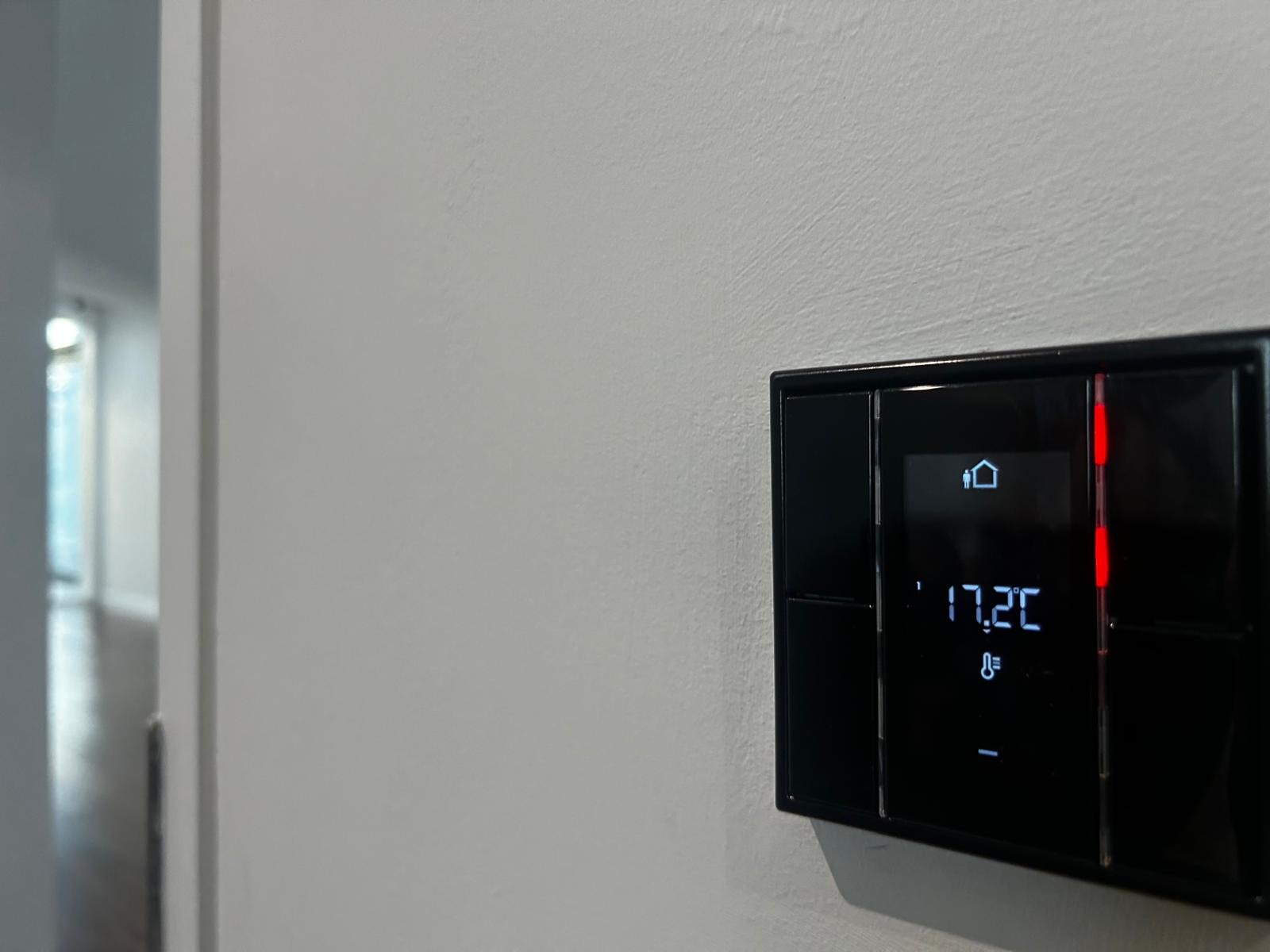
When a device stops responding, work through the basics before calling for help. Most faults trace back to power, network or a single misconfigured setting.
Checking Connectivity and Power First
Start with the simplest checks:
- Confirm the device has power and its indicator light is on
- Restart the device and wait two minutes for it to reconnect
- Check that your Wi-Fi or wired network is working on other devices
- Confirm the control app or hub is online
A device that drops off intermittently often points to weak Wi-Fi coverage rather than a faulty unit. Moving a router or adding an access point can solve the problem without replacing anything.
When to Escalate to Your Installer
Call your installer if the simple checks fail, if several devices go offline together, or if you see unexpected behaviour such as lights switching on without a command. These symptoms can point to wiring, controller or configuration faults that need a qualified electrician.
Give your installer a clear description of what happened, when it started and which steps you already tried.
Smart Home Software Updates: How Often They Should Happen
Software updates do two jobs in a smart home. They close security weaknesses in devices and hubs, and they keep different brands and firmware versions able to talk to each other. Neglecting them leaves devices exposed; applying them carelessly can break an integration that was working well.
Updates Come From Several Places
A typical system has more than one source of updates, and it helps to know which is which:
- Device firmware, which is installed on the sensor, switch, thermostat or lock itself
- Hub or controller firmware, which governs how devices communicate with each other
- The control app on your phone or tablet, which is updated through the app store
- Cloud services or integrations, which the manufacturer may change without any action from you
Firmware updates usually need to happen in a particular order, with the hub updated before the devices that depend on it.
How Often to Check
Check for pending updates at least every few months, and always after a major app release or a change to your router. Many updates arrive automatically, but automatic installation can happen at an inconvenient time, so it is worth confirming your settings.
Testing After an Update
After any update, run through a short test before assuming it is safe:
- Trigger one scene or automation from each room that uses it
- Check that locks, alarms and sensors still report their status correctly in the app
- Confirm that voice assistants and any third-party integrations still respond
- Note the version numbers before and after, so you can tell your installer exactly what changed if something breaks
If an update causes a fault, do not roll back firmware on your own unless your installer has told you how. Some devices cannot be downgraded safely, and an unsupervised rollback can leave a device unusable.
The article breaks software updates into four sources, each with its own timing and risk.
| Update source | What it covers | Action after updating |
|---|---|---|
| Device firmware | Sensor, switch, thermostat or lock | Test each device individually |
| Hub or controller firmware | How devices communicate | Update before dependent devices |
| Control app | Phone or tablet app | Update through the app store |
| Cloud services or integrations | Changes made by the manufacturer | Check voice assistants still respond |
Smart Home System Maintenance: A Post-Installation Checklist
Most faults that appear after installation are small and easy to catch early. The checklist below is arranged by when each task matters, so you know what to check in the first week, the first month and once a year.
The First Week
The first week is when installation errors and missed settings tend to show up, because you are using the system for the first time in normal daily conditions.
- Use every scene, schedule and automation at least once, and note any that behave differently from what you expected
- Check that each device appears under the right room or zone in the app, since misnamed rooms make voice commands and automations unreliable
- Confirm that someone other than the installer can log in to the control app with their own account
- Write down the installer’s support contact, the hub or controller model and the Wi-Fi network name somewhere you can find quickly
The First Month
By the end of the first month, you should have a clear picture of how the system performs across a full set of daily routines.
- Review the app’s activity or event history for repeated disconnections, since a device that drops off every few days usually has a signal or power problem
- Walk through the house at different times of day and check that motion sensors, lights and shading respond as intended
- Check whether any firmware or app updates are waiting and note them for your installer rather than applying them unsupervised
- Test the manual override for locks, heating and key lighting, so you know how to operate them if the app or network fails
Once a Year
An annual review is where gradual drift shows up: devices that are slowly losing signal, batteries nearing the end of their life, and routines that no longer match how the household lives. For the security side, see seven essential maintenance tasks for integrated security systems.
- Replace or test batteries in sensors and remotes, and record the dates so you can plan ahead
- Re-check Wi-Fi coverage in the rooms where devices are used most, especially after new furniture, appliances or a router change
- Review user accounts and remove access for anyone who no longer lives in or manages the property
- Confirm that the installer’s service terms, warranty dates and support contact details are still current
- Book a professional review if the system has gained devices, changed providers or developed recurring faults
A simple log, even a note on your phone, makes these reviews far easier and gives your installer a clear history if you call for help. You can book a smart home system audit to have the whole setup checked against this list.
Keeping Your Smart Home Secure and Your Account Under Your Control
Connected devices can be a security risk. The UK’s National Cyber Security Centre advises changing default passwords, enabling two-factor authentication and keeping software up to date. Make sure the main account for your system is in your name, not your installer’s, so you keep access if you change providers.
Smart Home System Upgrades: Adding Devices Without Starting Over
Adding devices later is common. A well-designed system can accept new lights, sensors or controls without a full rewire. Before buying a new device, check that it works with your existing platform. Mixing unrelated brands without planning often leads to devices that cannot talk to each other.
Booking Your Support Review With AME Electrical
If you have noticed faults building up, a support review is a sensible next step.
Reliable support is what keeps a smart home working after the installation crew leaves. Request a support review from AME Electrical, and we will confirm what your system needs and how we can keep it running well. Get A Quote today.
Frequently Asked Questions
What support should I expect after a smart home installation?
Support after installation should include a documented handover, guidance on how the system is controlled, and a clear route for reporting faults. Ask your installer whether remote or on-site support is included, what response times apply, and whether software updates are handled for you. Current support terms and any service charges are best confirmed directly through a quote request on the website.
How do I troubleshoot a smart home device that has stopped working?
Start by checking power, then the device’s network connection, then the hub or app it reports to. Restarting the device and confirming your Wi-Fi coverage at its location resolves many faults. If the device still fails, note the model, firmware version and the exact symptom before contacting your installer, as this speeds up diagnosis and avoids repeat visits.
How often should smart home systems be updated?
Software and firmware updates should be applied as the manufacturer releases them. Updates fix security vulnerabilities and compatibility problems, so delaying them increases risk. Ask whether updates are applied automatically or need approval before they are installed on your system.
Can smart home devices be added after installation?
Yes, but new devices must be compatible with the platform your system uses, such as KNX or Nice-based control. Adding a device without checking compatibility can cause conflicts or reduce reliability. Speak to your installer before buying hardware so the new device can be integrated and configured properly.
